Features
What DaevaMeter does, where to turn each part on, and its hotkeys.
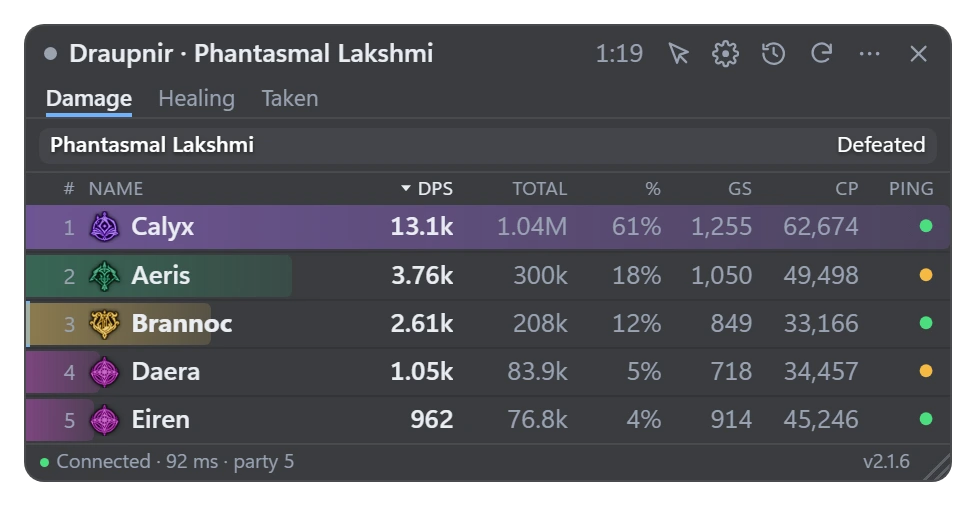
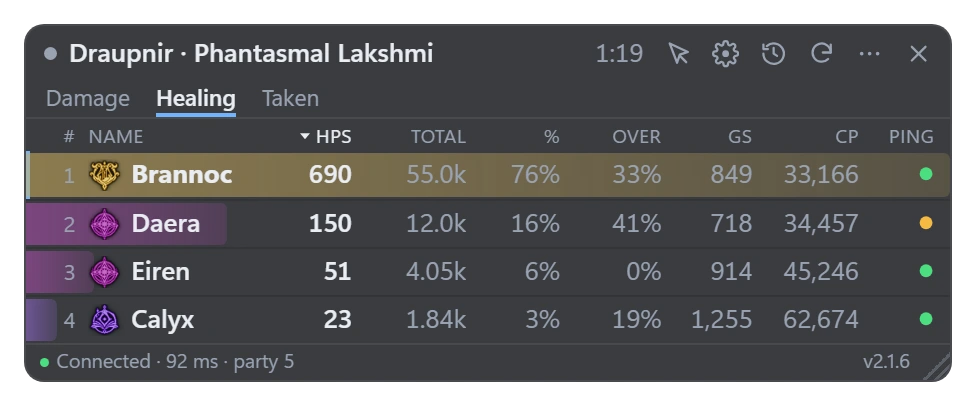
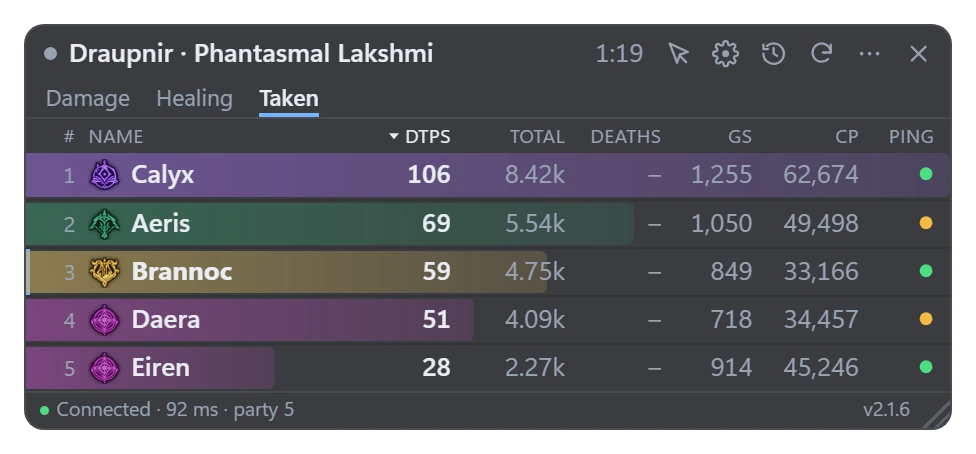
Damage, healing and damage taken for your party
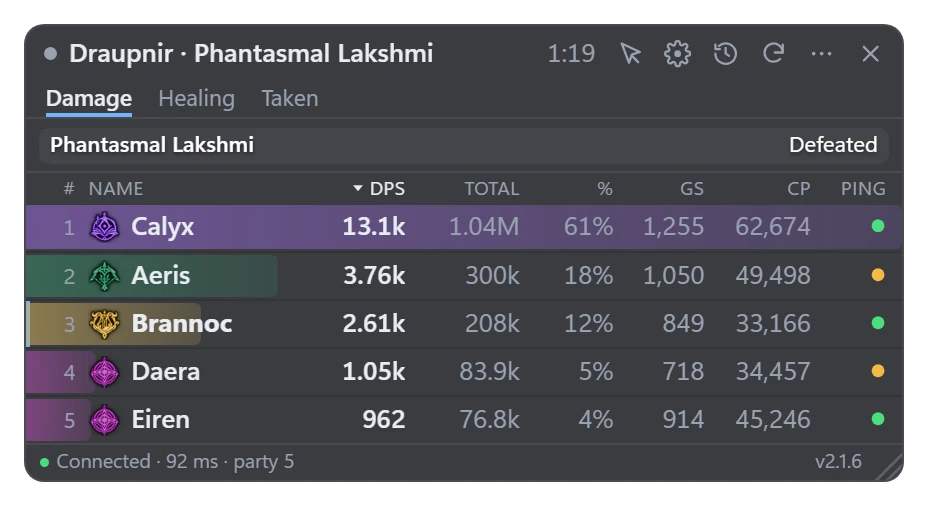
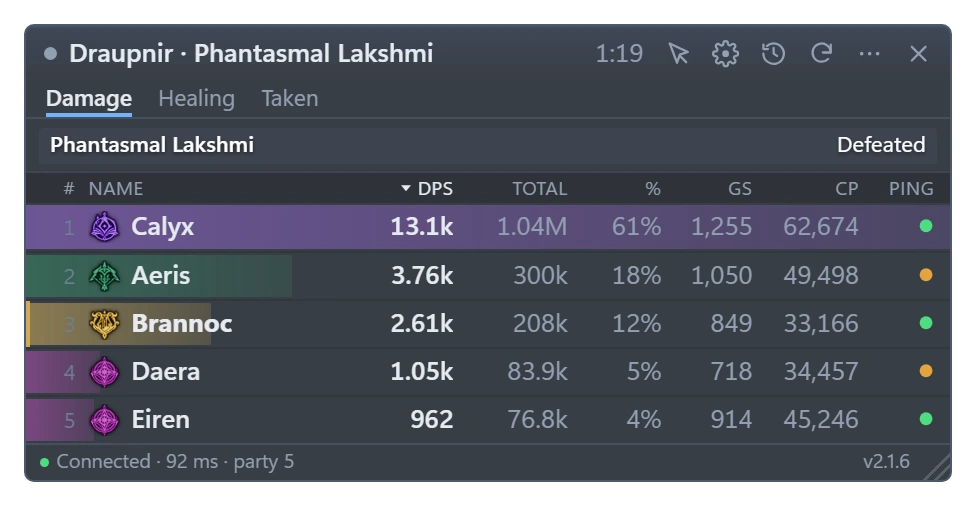
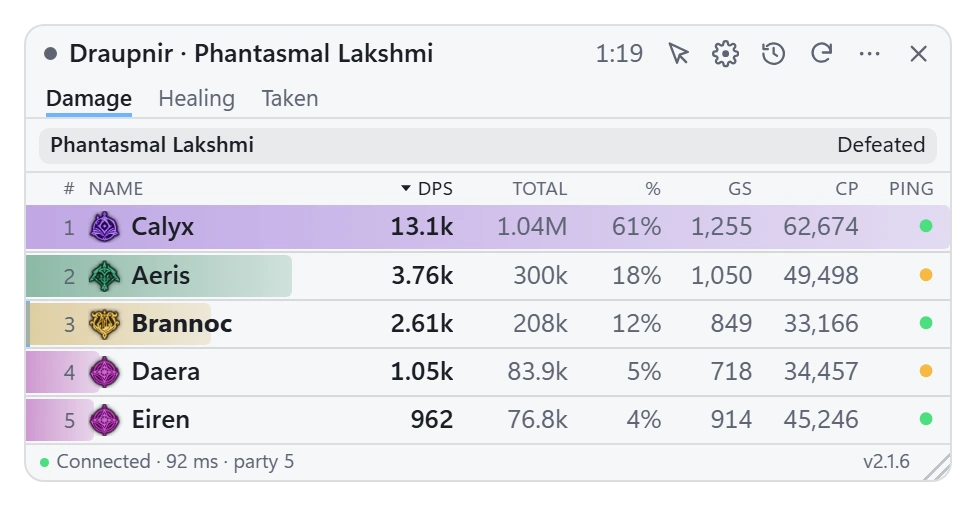
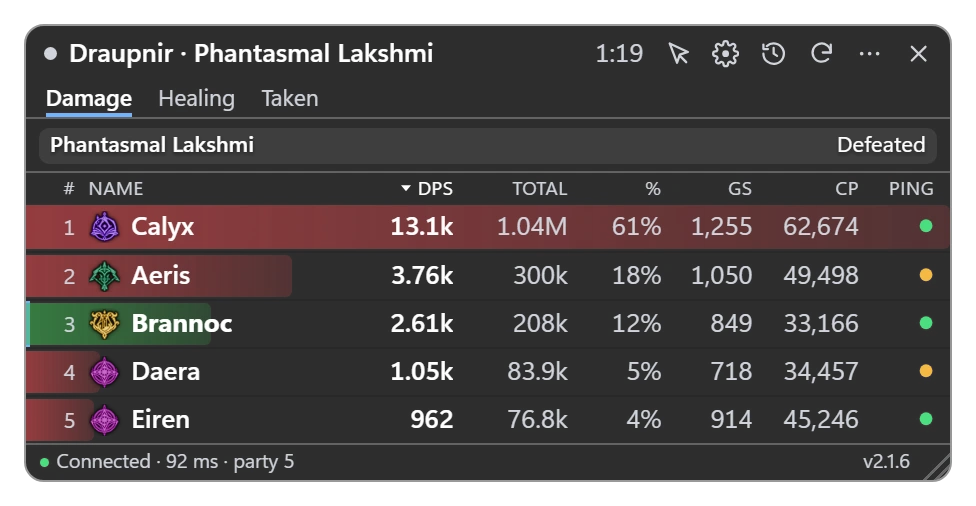
Each player’s damage and DPS, healing and damage taken, during the fight. Click a column to sort by it.
- The boss bar: its HP, the time left to kill it (from how fast its HP went down over the last minute) and its stagger bar.
- The frenzy countdown: when a boss frenzies, from the game’s own time: “Frenzy 4:41”, orange in the last 30 seconds.
- Healing with overheal, damage taken, Gear Score and Combat Power, your ping and your party’s.
- Your party, or everyone nearby: with everyone nearby, Others is what the boss lost to the players the game sends no numbers for.
- Recent fights are kept: open one again, or save it.
Hotkeys: Ctrl+Shift+D show or hide · Ctrl+Shift+R reset the fight · Ctrl+Shift+L click-through
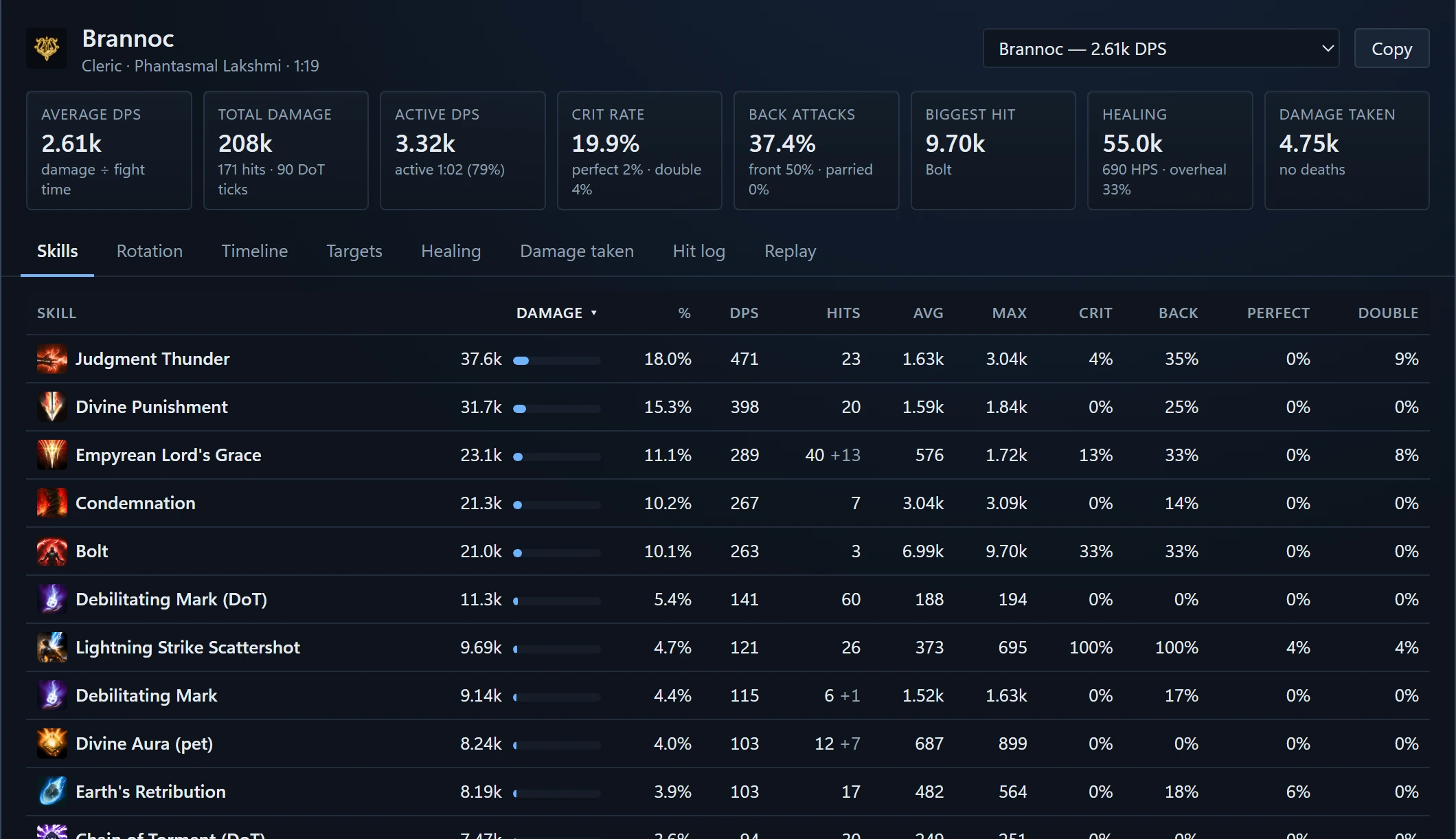
Each player’s skills and hits
Click a player to open their breakdown.
- Each skill: damage, hits, crit rate, back attacks, perfect and double hits, the biggest hit.
- Targets, healing and damage taken, each in its own tab.
- A timeline of damage and healing per second, and a log of every hit.
Hotkey: Ctrl+Shift+K your own breakdown
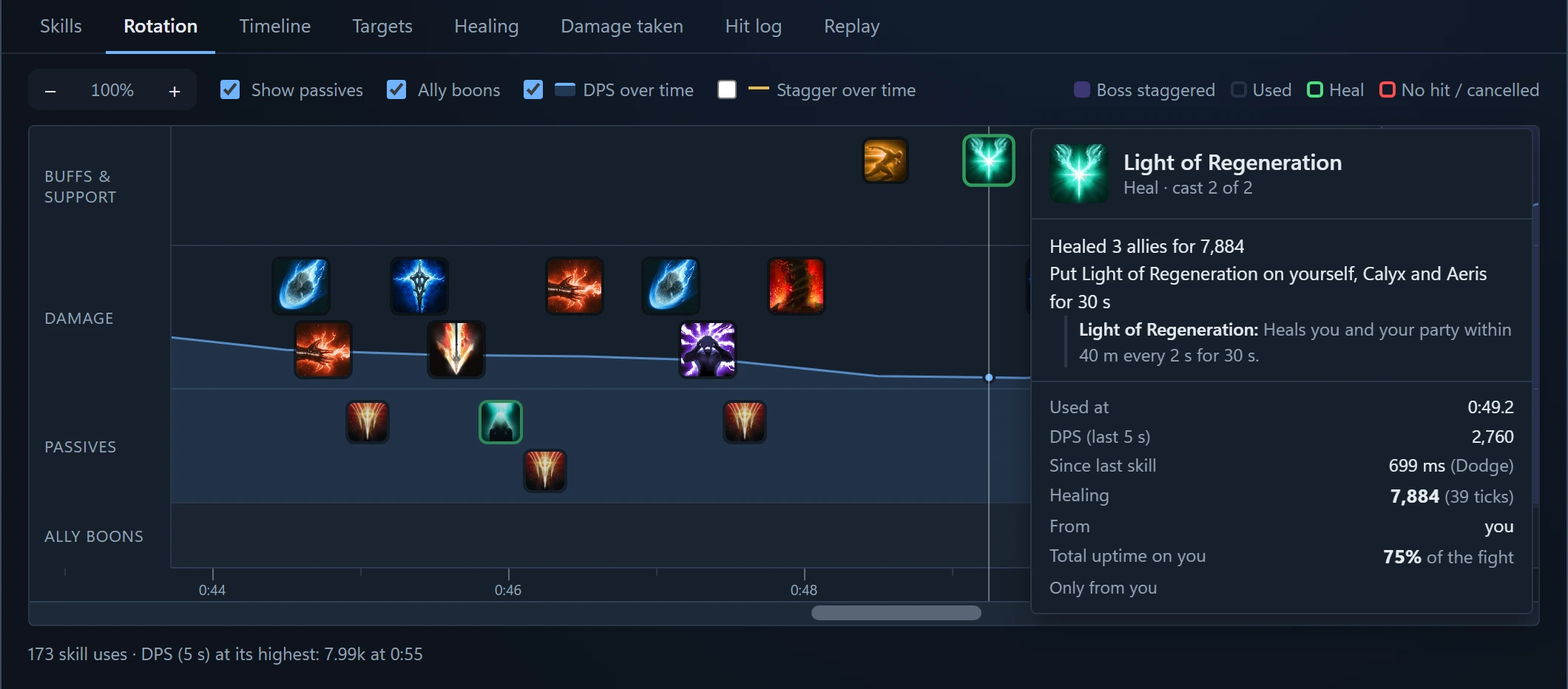
Every skill in order
Every skill a player used, in order, on a timeline you can zoom. Hover one to see what it did and how long after the last skill it came.
- Ally boons: the buffs your party put on them, under their skills.
- The opening: how they started the fight, and how often they used each skill.
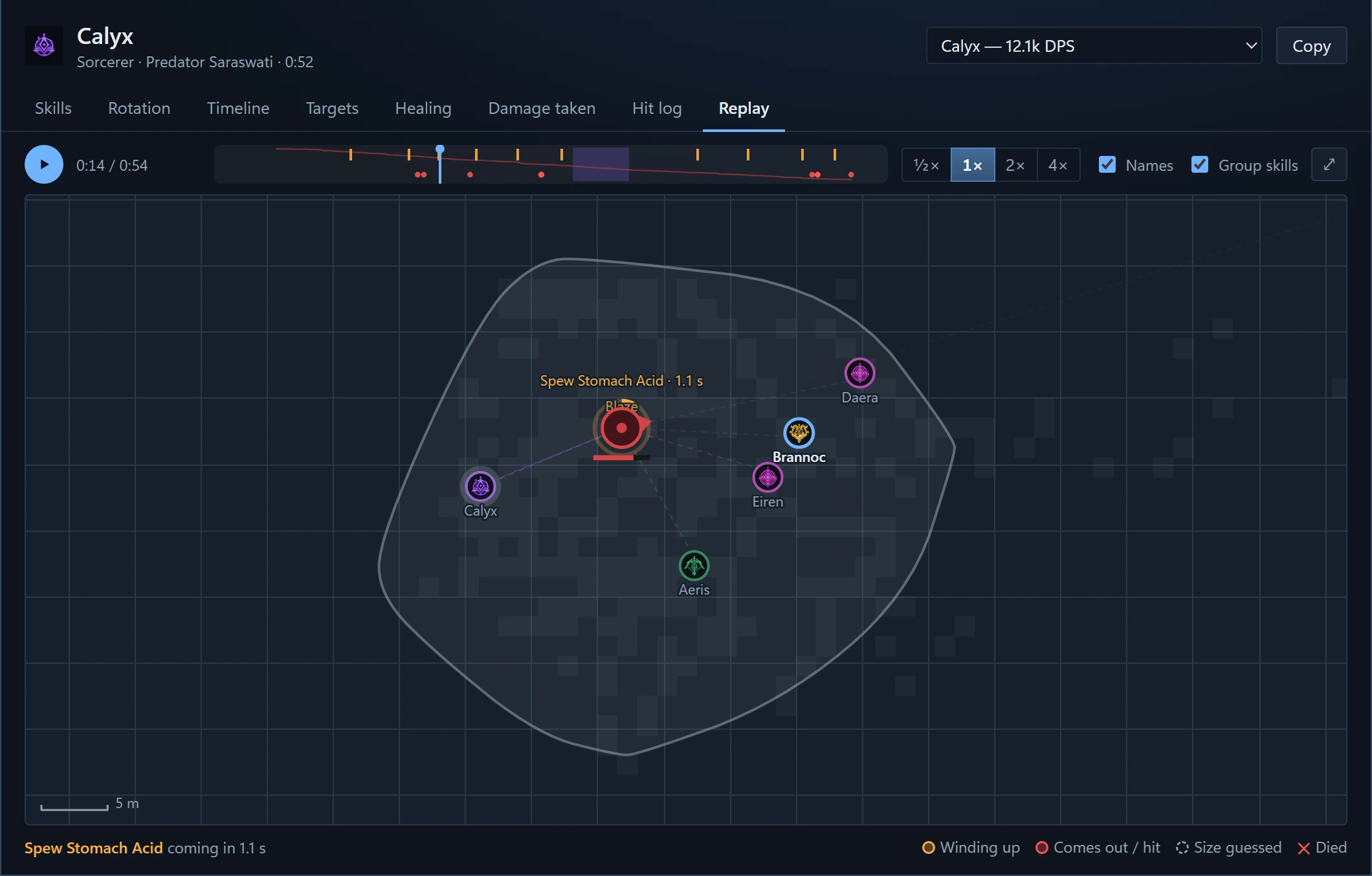
Boss fights played back on the map
Boss fights inside a dungeon are recorded as you play. Play one back on the room’s map: where everyone stood, where the boss aimed its attacks, and who they hit.
In a fight’s breakdown: the Replay tab
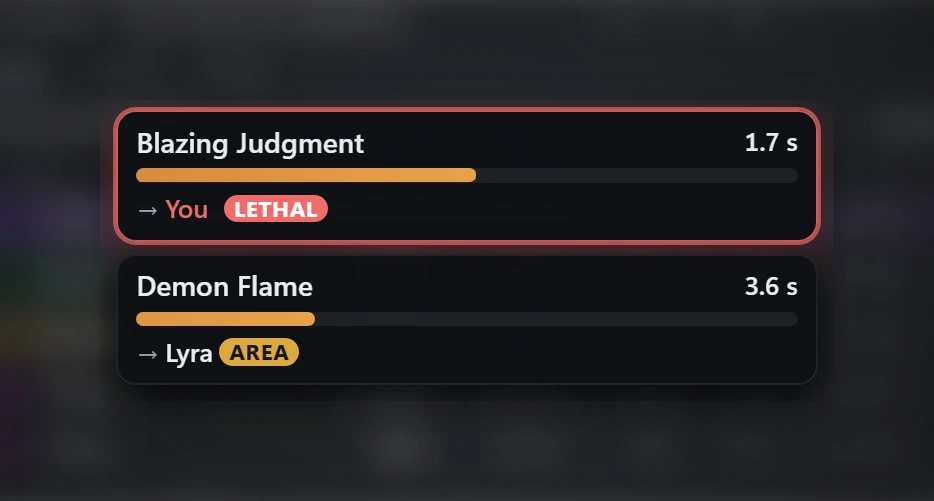
A boss’s casts as they wind up
A boss’s skill from the moment it starts casting: its name, the time left, and who it’s aimed at (“You” in red).
- LETHAL when it could kill you, AREA when it hits everyone around its target.
- Three at once, together or each in its own place on your screen.
- A sound, if you turn it on, when a cast is aimed at you or could kill you.
- Its moves with no cast, as they happen.
Settings › Combat Assist (off until you turn it on) · Hotkey: Ctrl+Shift+B
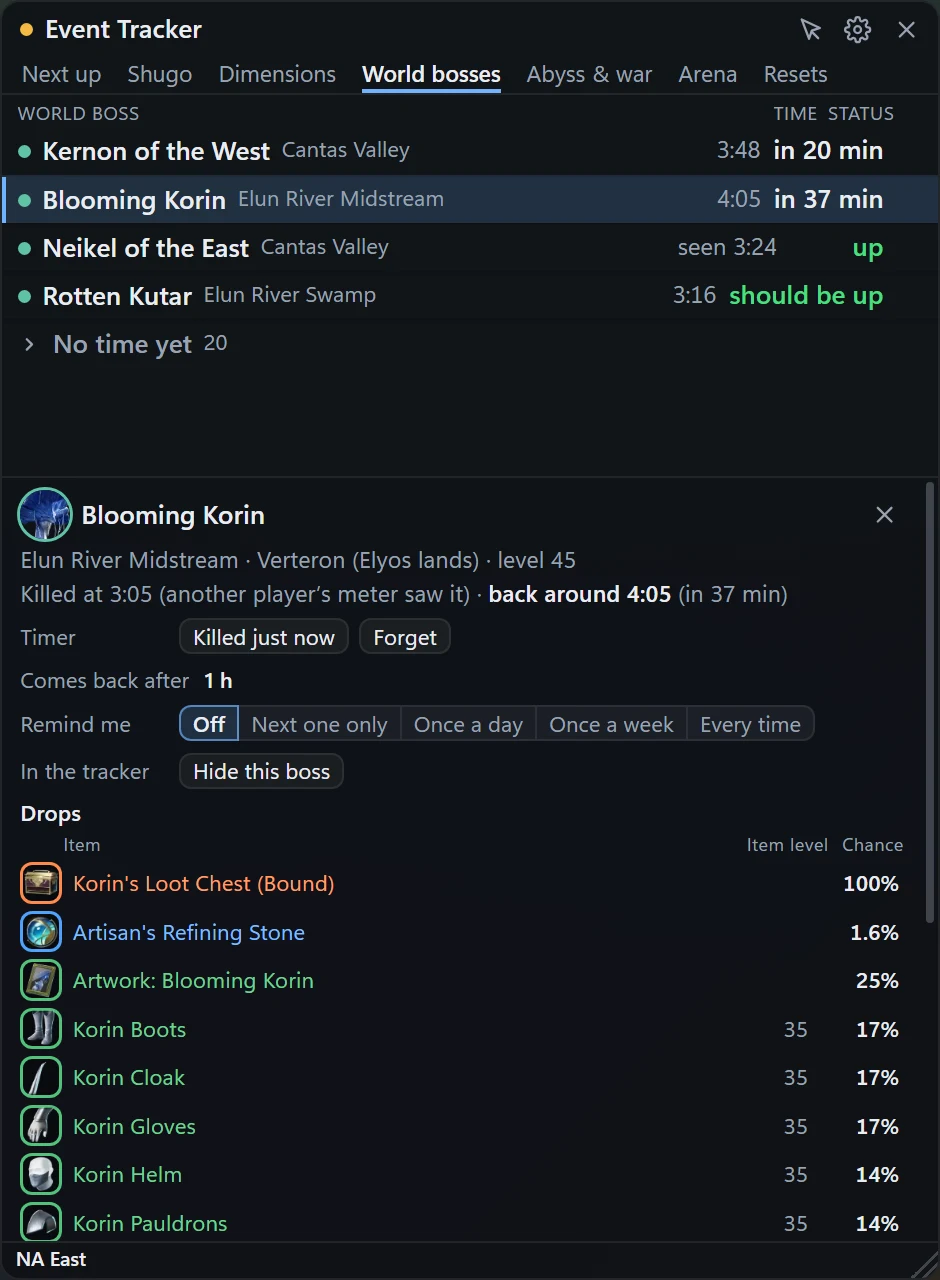
Timed events on your server’s clock
The Shugo Festival, rifts and invasions, field and Abyss bosses, the arena and the resets.
- Reminders over the game, as long before as you choose. They don’t take the game’s focus.
- World bosses: their timers come from the game’s own map, and from what other DaevaMeter players’ meters see on your server.
- Drops: what each boss drops, with the game’s icons, each item’s level and its chance.
Settings › Event Tracker · Hotkey: Ctrl+Shift+E · Also on this site: event timers
The zone you’re in, with what you pick on it
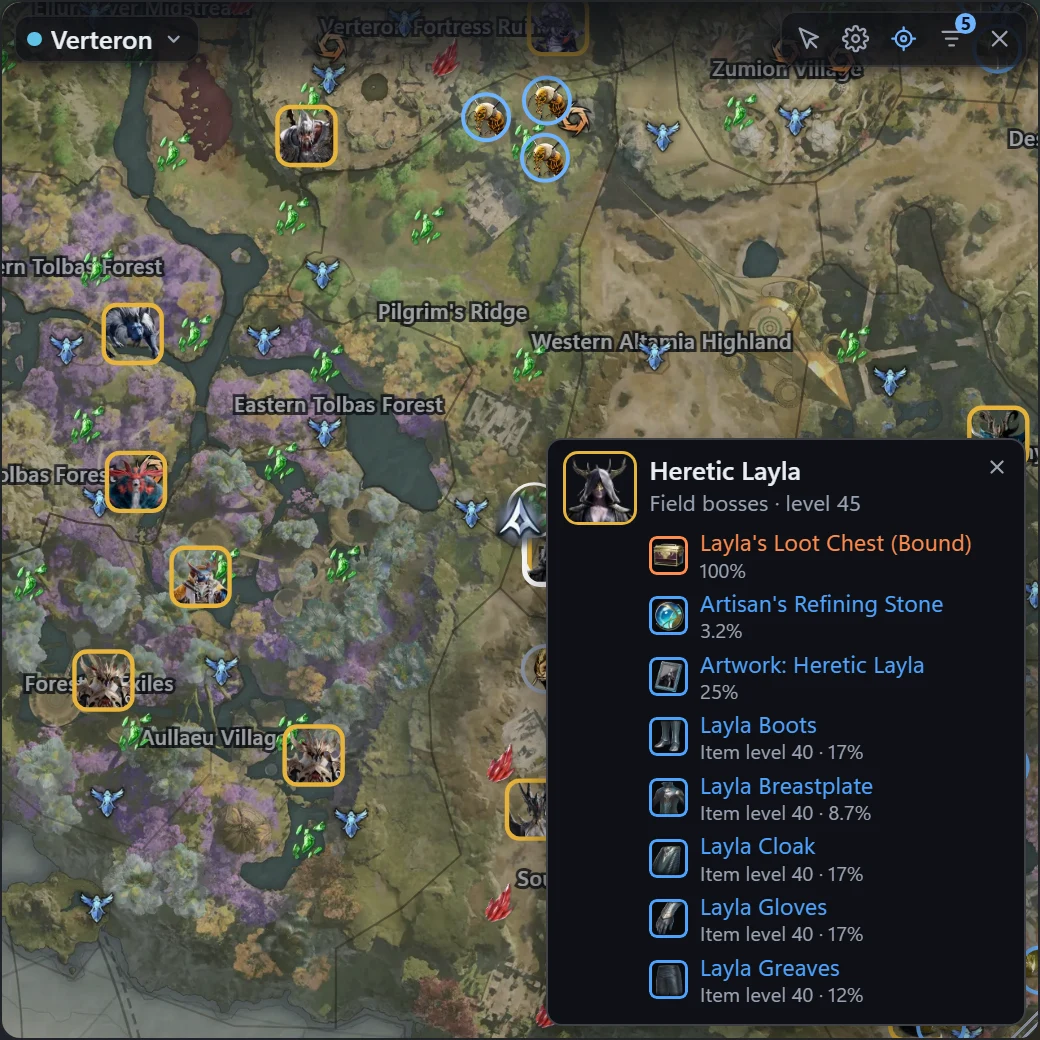
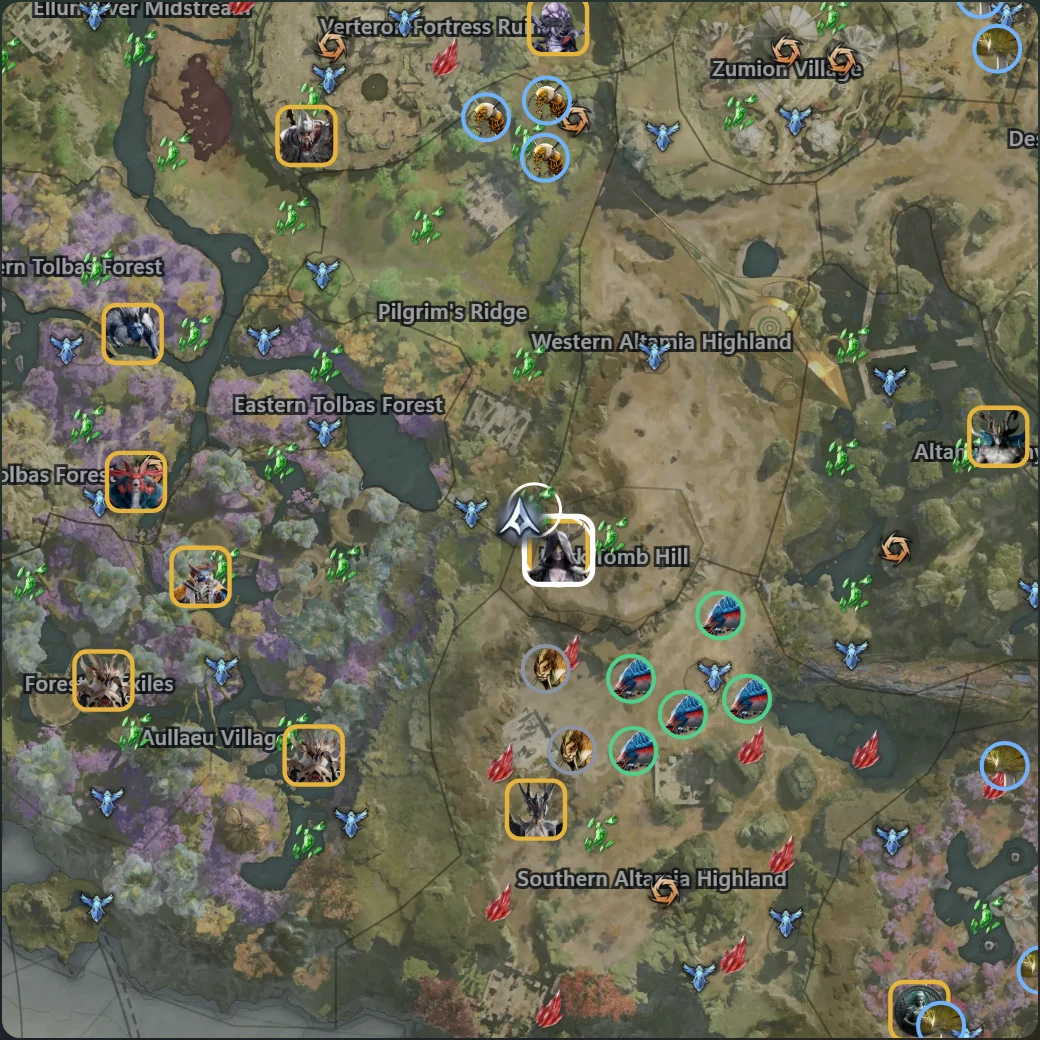
The game’s own map of the zone you’re in, over the game, with you on it as you move. It changes with you: Poeta, Verteron, Eltnen, Ishalgen, Altgard, Morheim and the Abyss.
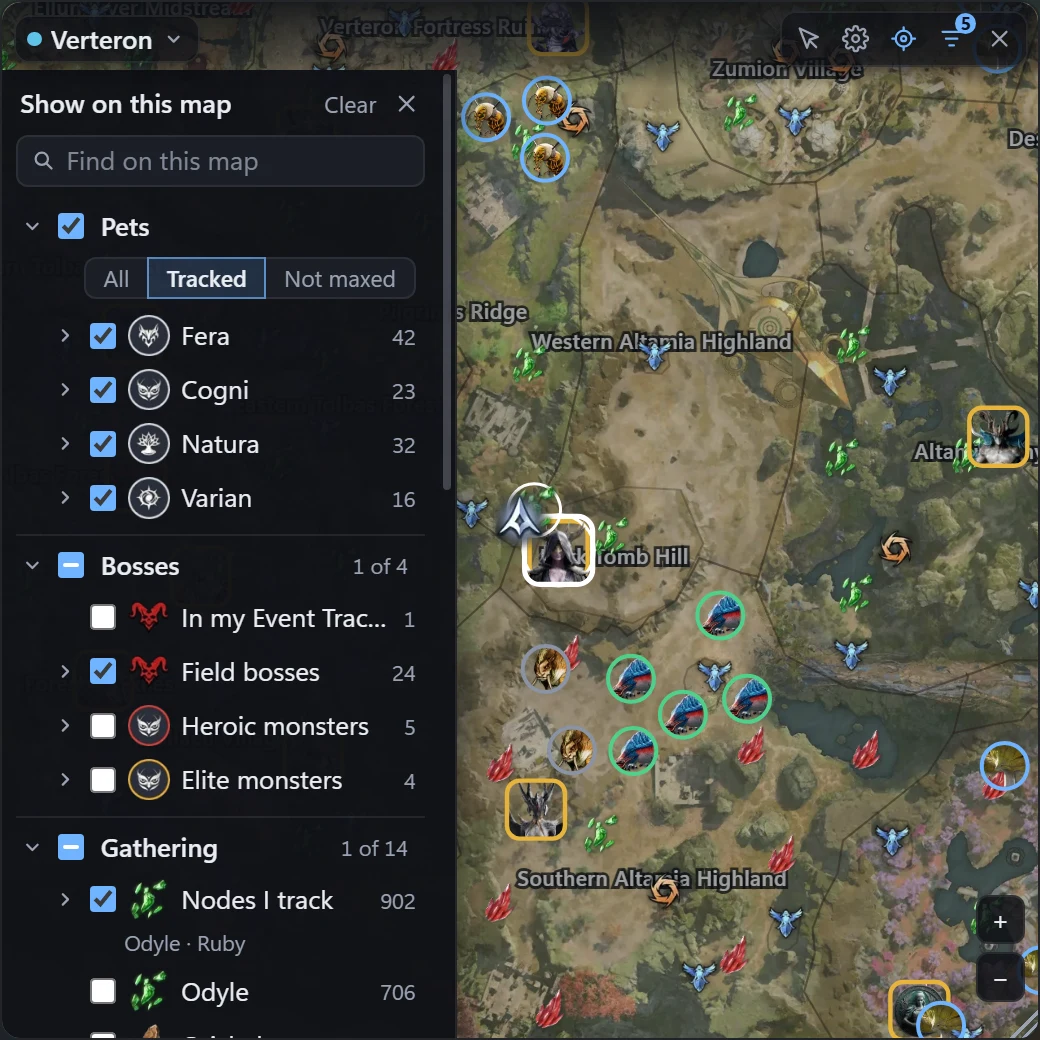
- Only what you pick: nothing shows until you pick it, and it’s kept. The list only has what this zone has: pets, bosses, gathering (the nodes you track first), travel, places, monsters, services, quests, hidden cubes. A row’s arrow lists its own ones, each boss or each pet, to show only those.
- Pets: where their monsters spawn, by kind (Fera, Cogni, Natura, Varian) or one by one: all of them, the ones you track, or the ones not maxed.
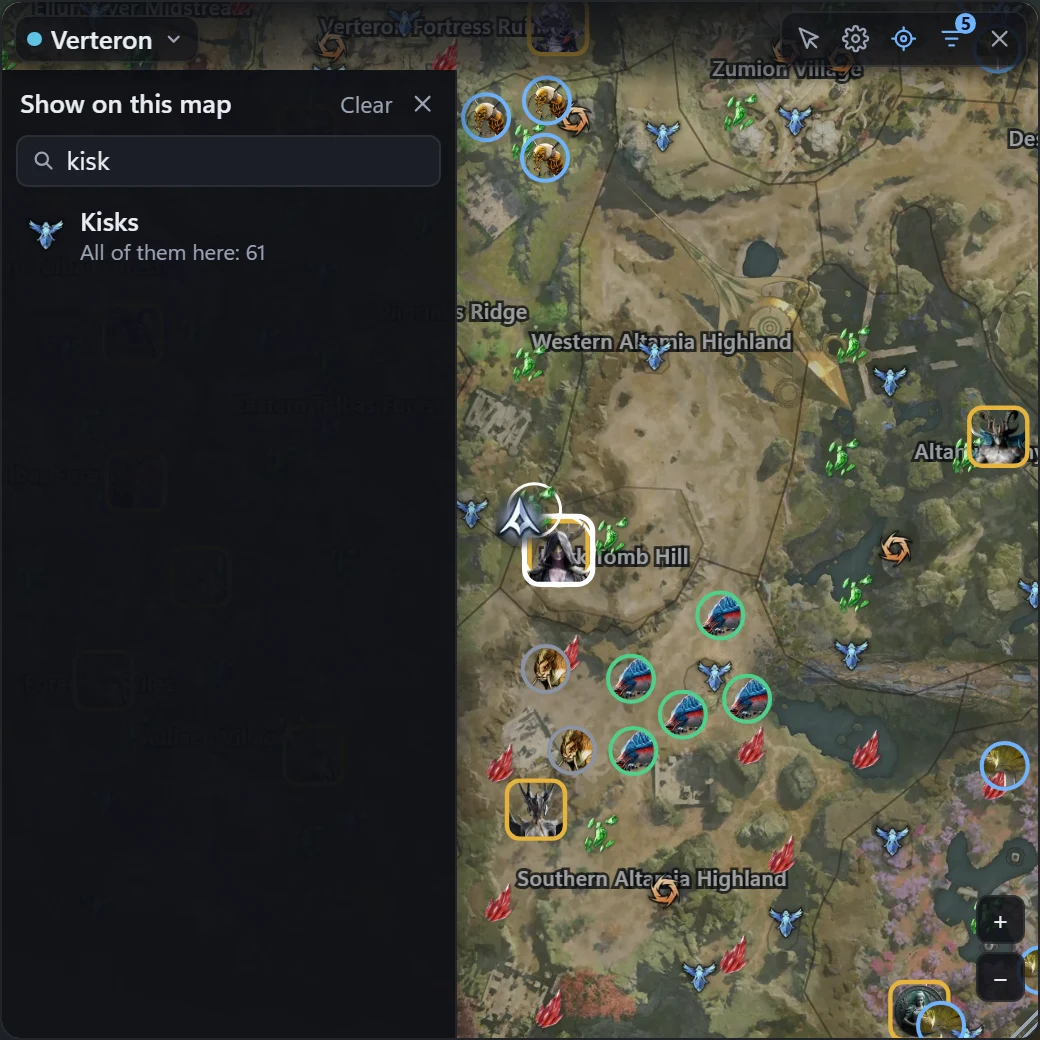
- Find anything by name, and hover a marker for its card: a field boss’s best drops, a pet’s progress. Click it to keep the card open, with the drops’ names.
- Its own HUD piece: no title bar (its controls show while the mouse is over it), any size, its opacity, click-through, and only the map without its frame.
- Its list out of the way: it slides away a moment after the mouse leaves the map, and comes back as you left it.
- Away when it can’t help: in a dungeon, at the character select and while the game is minimized. It comes back by itself.
Hotkey: Ctrl+Shift+M · Tray icon or the meter’s ⋯ menu › Interactive map · Its look: Edit HUD layout
Souls to each pet’s next level
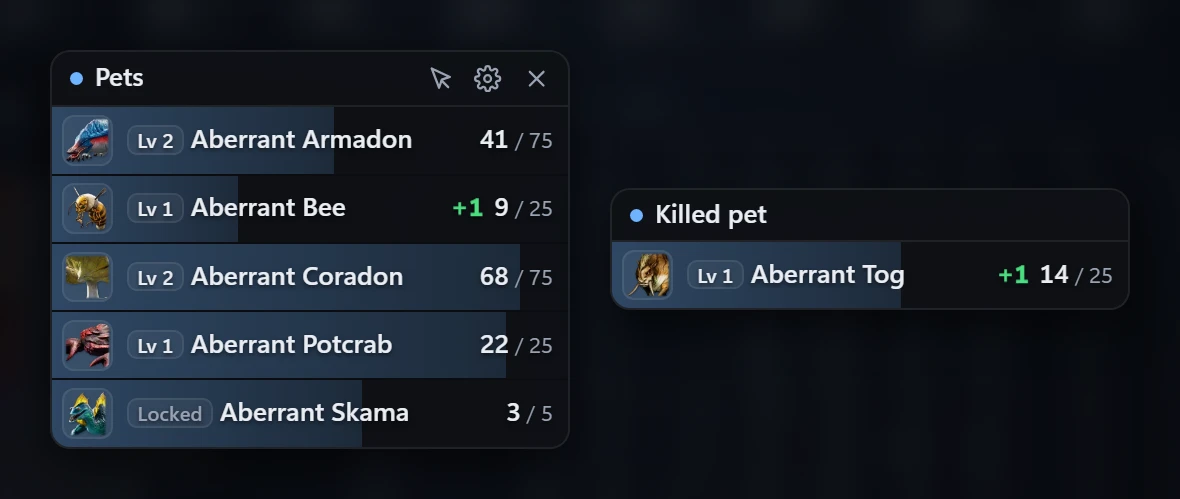
Pick the pets to track, as many as you like. They show over the game with their level and the souls to their next level, updated as souls drop; the ones not maxed first.
- Your list: find a pet or the monsters it comes from, then show all of them, the ones you track or the ones not maxed, of the kinds you pick: Fera, Cogni, Natura, Varian. All and None tick what the list shows.
- Killed pet: the souls you just got for a pet you don’t track.
- Where to farm them: the spots where their monsters spawn, on your minimap markers and the interactive map. On this site too: the interactive map (pick Pets, or find one by its name).
- Only what the game sends you: your collection and the souls you get. Nothing else is read, and nothing is sent anywhere.
Settings › Pet Tracker, the meter’s ⋯ menu or the tray icon
Your characters and their currencies
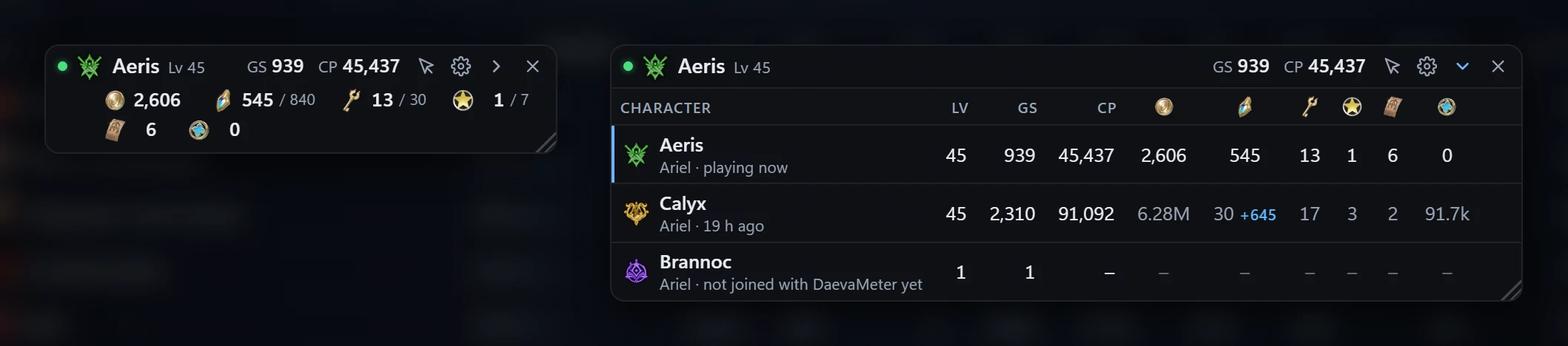
A small piece over the game with the character you play: its class, level, Gear Score and Combat Power, and the currencies you pick, each with the game’s icon: Kina, Abyss Points, Oath Coin, Odyle Energy, Shugo Festival and Dimensional Invasion keys, and more.
- Your other characters: its arrow opens them, each saying when its numbers are from. Join a character once with DaevaMeter running to fill it in.
- Out of the way: small, drag it anywhere and size it with its corner; without its window or its title if you like; tick Hide in combat to hide it while you fight.
- Only what the game sends you, kept on your PC. Nothing is sent anywhere.
Settings › Characters (off until you turn it on), the meter’s ⋯ menu or the tray icon · Its place and size: Edit HUD layout
Gathering nodes and hidden cubes
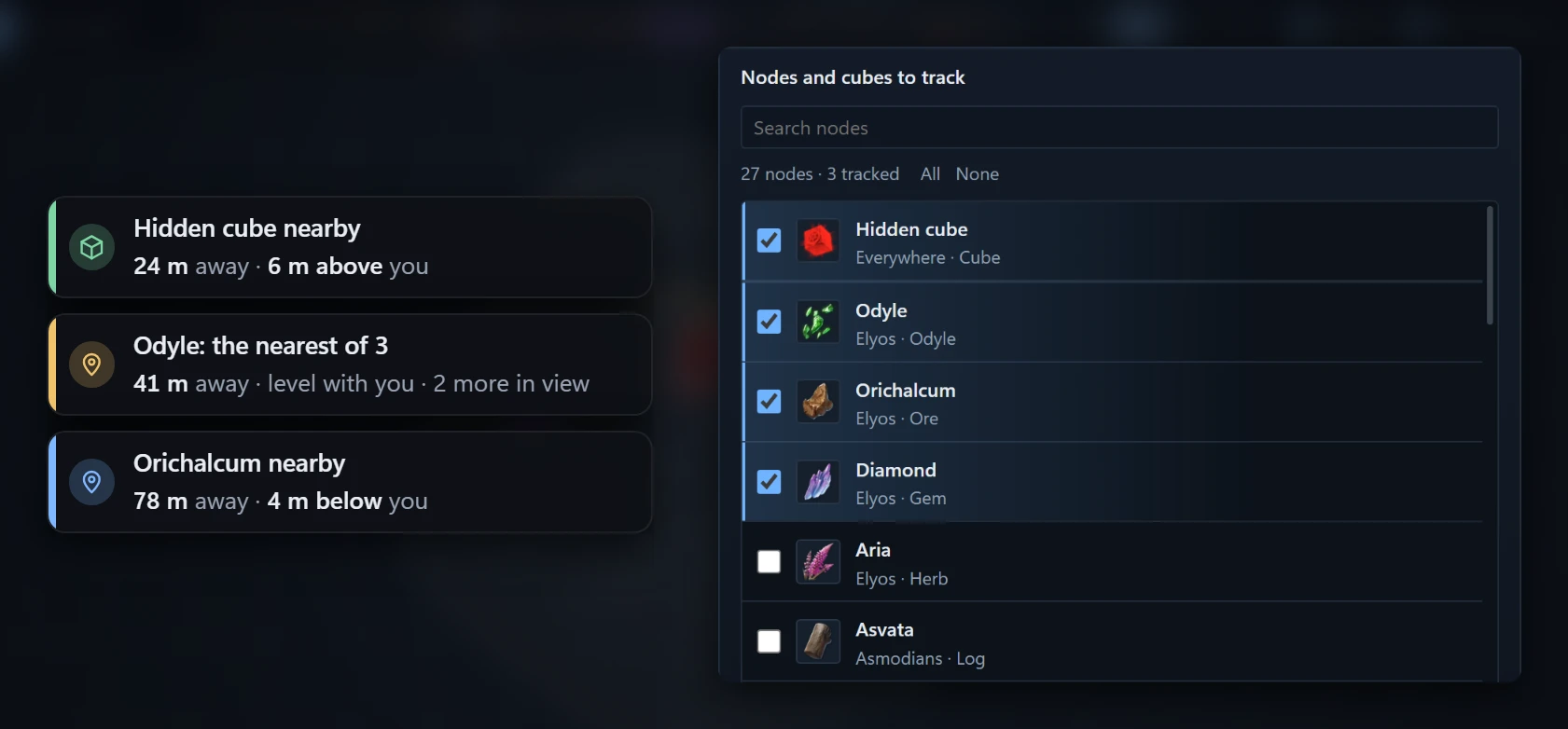
Choose the gathering nodes you care about, as many as you like: a notice says when one is near, and markers with each node’s own icon can sit on your minimap.
- How far and which way: its distance, and how far above or below you it is.
- On the interactive map: every spot of the nodes you track and the hidden cubes, the ones near you as the game shows them.
- From what the game sends: the meter only knows what your game already receives. The minimap markers look at the minimap’s area on your screen to follow it; nothing of your screen is kept or sent.
- Away when they can’t help: the minimap markers are off in a dungeon, at the character select and while the game is minimized, and come back by themselves.
Settings › Node/Cube Tracking · Place on minimap puts the markers on your minimap · Node notices in Edit HUD layout gives the notices a place of their own
Where each piece sits, and how it looks
Edit HUD layout shows every piece over the game at once: drag them, size them, snap them to each other and the screen’s edges, and choose what each one shows.
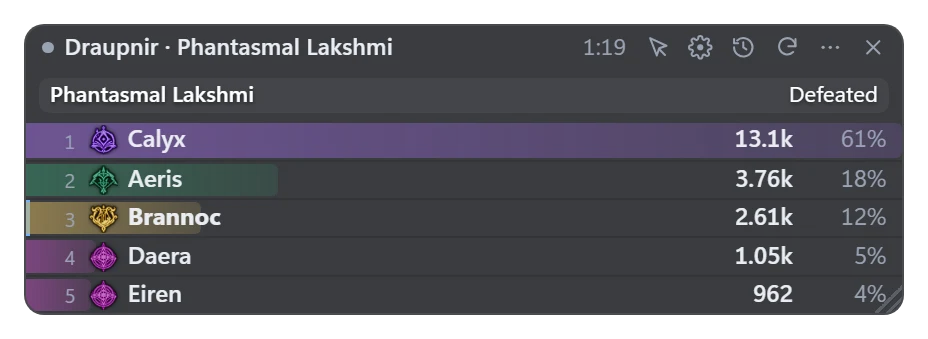
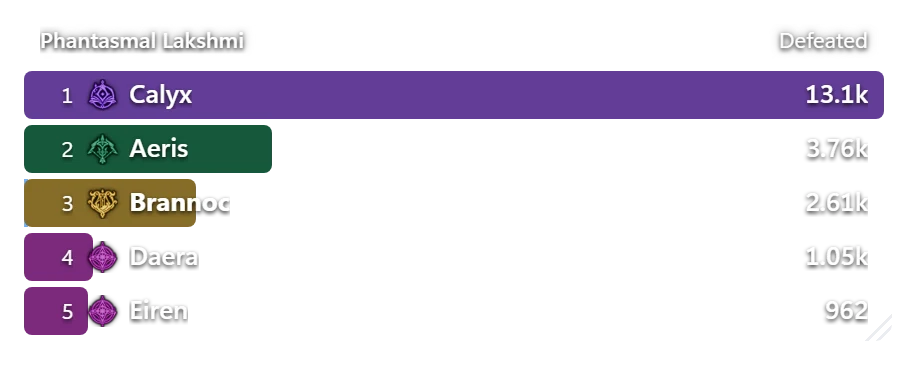
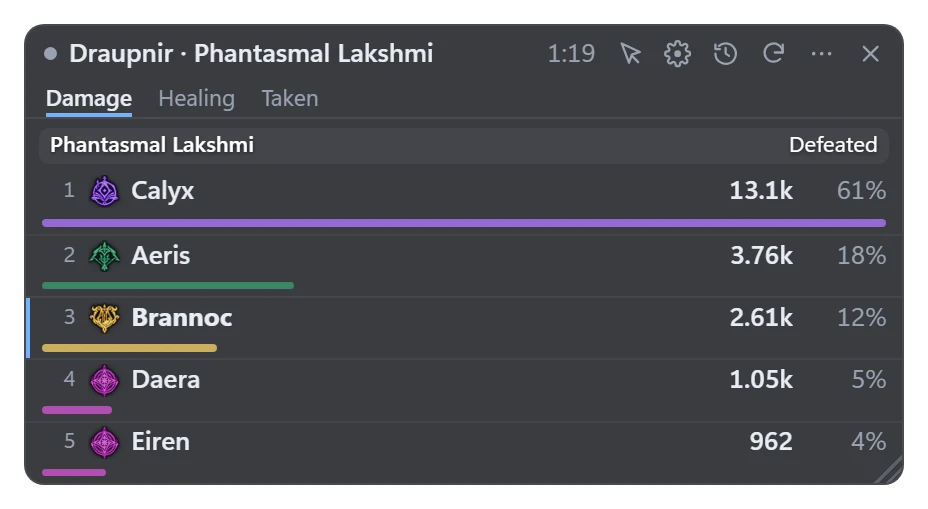
- The meter’s look: Classic, Compact, Bars only (just the bars over the game) or Two lines; its frame and title bar, tabs and column names each on or off.
- The other pieces too: the Event Tracker, the Pet Tracker, Killed pet, Combat Assist and the character panel each with their window or without it (Bars only, Text only); the event reminders and the node notices too (Text only).
- Five themes (Dark, Daeva, Glass, Light, High contrast), your own colours, opacity, size, and which columns show.
- Hide during game menus, and click-through.
- Each piece’s buttons, on the right of its top: Click-through and Settings first, then its own, and × last, which hides it (the tray icon brings it back). Combat Assist and Killed pet have none; the character panel with its Title off has them at its bottom right while its list is closed.
- Gone with the game: when AION 2 closes, every piece leaves the screen, and they come back when it starts. Settings and the tray icon stay; reminders still come.
Settings, or the meter’s ⋯ menu › Edit HUD layout · Hotkey: Ctrl+Shift+O opens Settings
The meter on Discord or OBS
Share the window “DaevaMeter Stream” in Discord: viewers see the game with the meter where it sits on your screen. For OBS or Streamlabs, copy the stream overlay link from the tray icon.
Settings and players’ details never show in the stream.
Discord or OBS
Discord: share the window “DaevaMeter Stream”, not the game. OBS and Streamlabs: tray icon › Copy Stream Overlay link, then add a Browser source above your game.
Boss kills from DaevaMeter players
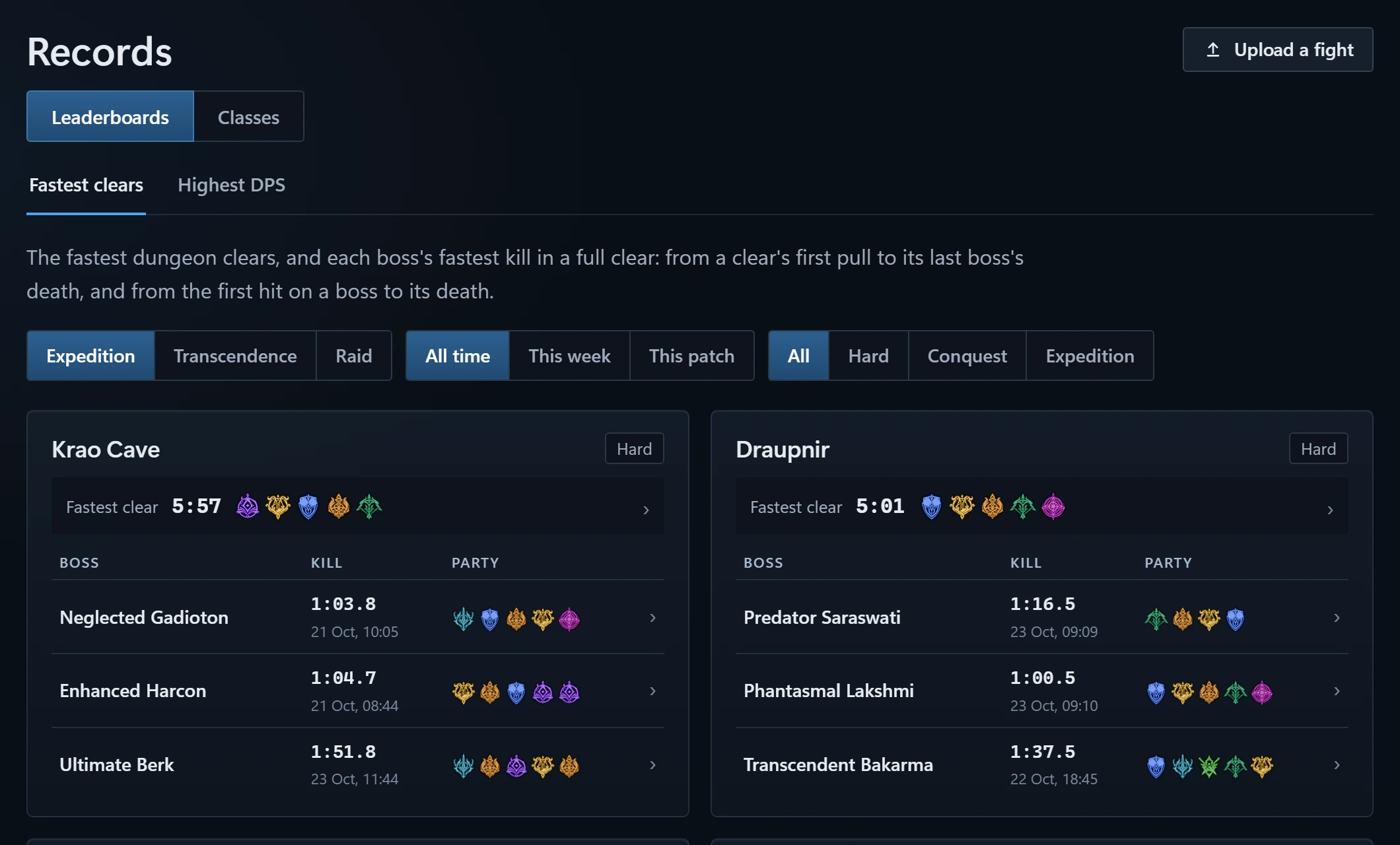
With Records on, the meter sends your group’s Expedition, Transcendence and Raid boss kills to this site: the fastest clears, each class’s DPS, and the builds players use.
- Names: everyone is shown by their class. With Show names on, you’re shown by your name.
- Open any kill: everyone’s skills, rotation, timeline, hit log and the replay.
Settings › DPS Meter › Records · See the Records · Privacy