
The DaevaMeter guide
Each part of DaevaMeter, what it shows and how to set it up, one at a time. Installed it already? Start with your first fight.
Your first fight
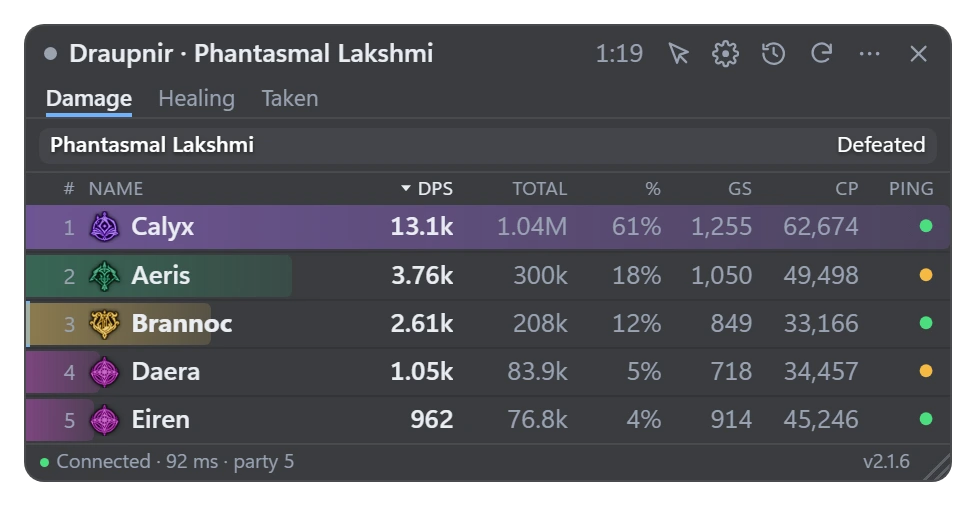
Start DaevaMeter, then AION 2. The meter shows over the game and a fight starts as soon as you or your party deal or take damage. It ends after a few quiet seconds, or when the boss dies.
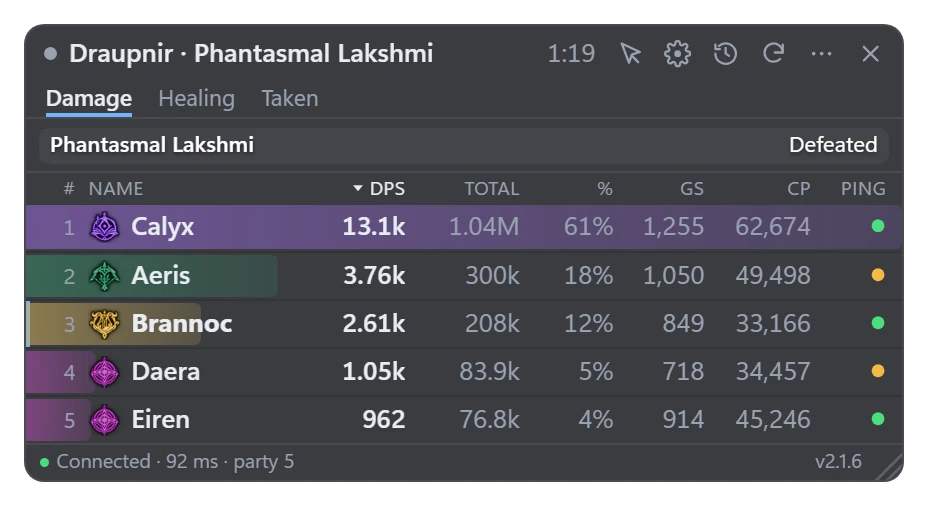
- Damage, Healing, Taken: the meter’s three tabs. Click a column’s name to sort by it.
- Your party, or everyone nearby: the meter’s ⋯ menu › Show. With everyone nearby, Others is what the boss lost to the players the game sends no numbers for.
- Clicking the meter in game: hold the key that frees your cursor (Alt by default).
- A new fight by hand: Ctrl+Shift+R, or ⋯ › Reset fight.
Reading a fight
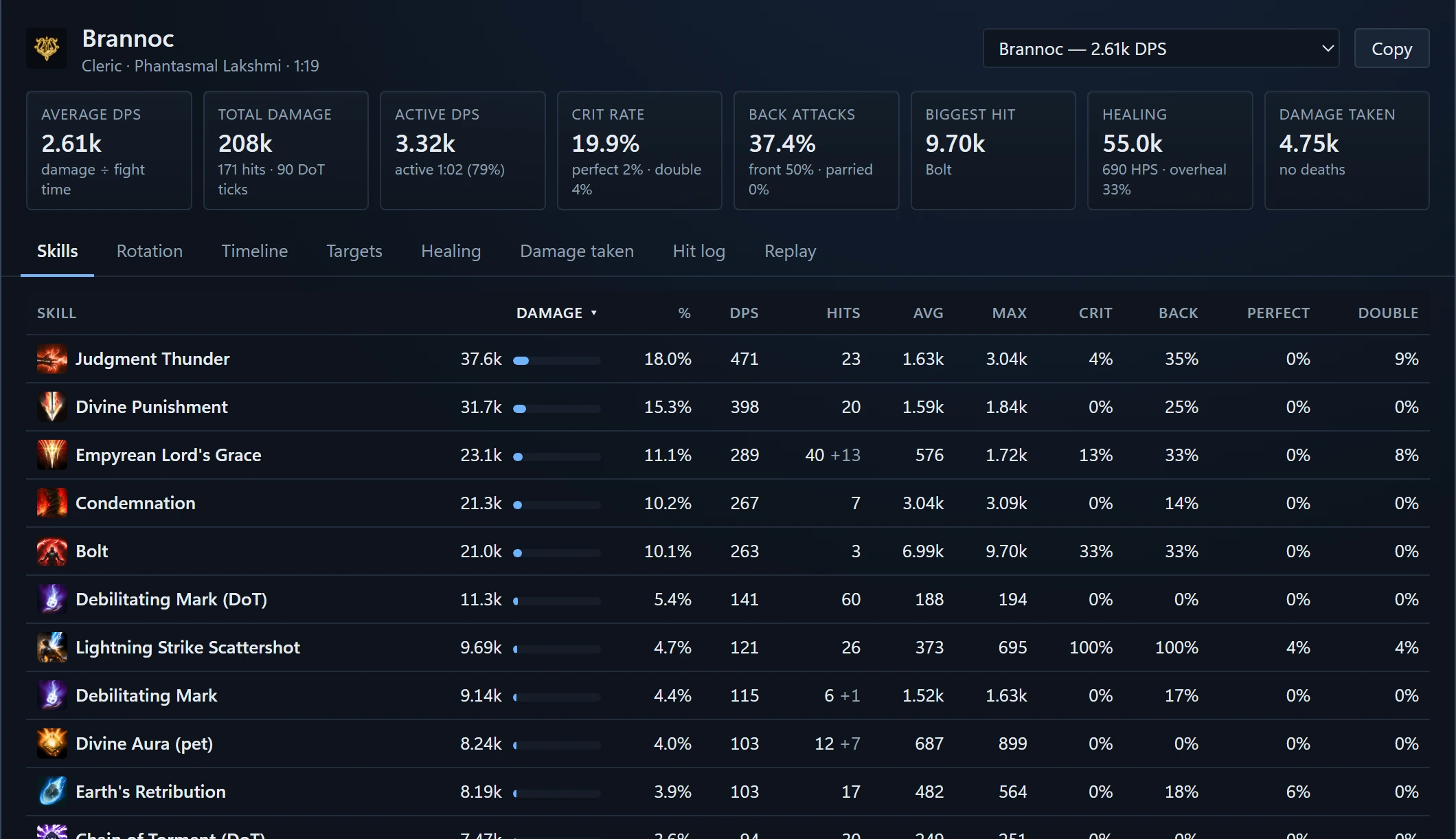
Click a player on the meter to open their breakdown (Ctrl+Shift+K opens yours).
- Skills: each one’s damage, hits, crit rate, back attacks and biggest hit.
- Rotation: every skill in order on a timeline; the opening and how often each was used.
- Replay: boss fights in a dungeon, played back on the room’s map.
- Past fights: ⋯ › Fight history. Open one again, or save it.
Your layout
Edit HUD layout (Settings, or ⋯ › Edit HUD layout) shows every piece over the game at once. Drag a piece to move it, drag its corner to size it, and pick it to choose what it shows. Save keeps it all; Cancel puts everything back.
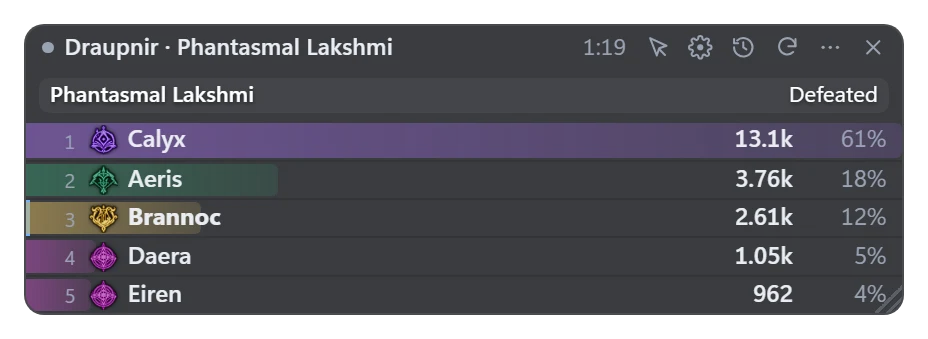
- The meter’s look: Classic, Compact, Bars only (just the bars, no window behind them) or Two lines. Its frame and title bar, its tabs and column names: each on or off.
- The other pieces: the Event Tracker, the Pet Tracker, Killed pet, Combat Assist and the character panel have a Style too: their window, or only what they show over the game (Bars only, Text only). So do the event reminders and the node notices (Text only).
- What it shows: its columns, rank numbers, the boss bars and the status line. Row height, Text size and Max rows are under More.
- Click-through: clicks go to the game (Ctrl+Shift+L).
- Each piece’s buttons, on the right of its top: Click-through and Settings first, then its own, and × last, which hides it (the tray icon brings it back). Combat Assist and Killed pet have none; the character panel with its Title off has them at its bottom right while its list is closed.
- Hide during game menus: the tray icon’s menu.
- Gone with the game: when AION 2 closes, every piece leaves the screen, and they come back when it starts. Reminders still come. To keep the pieces up: Settings › Window › Show without the game.
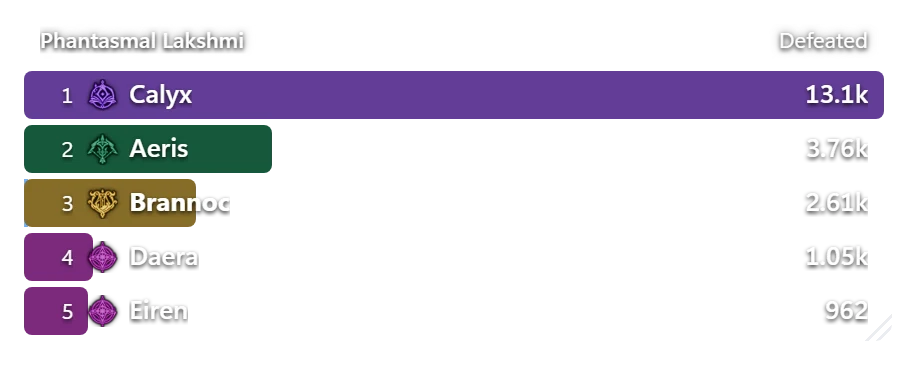
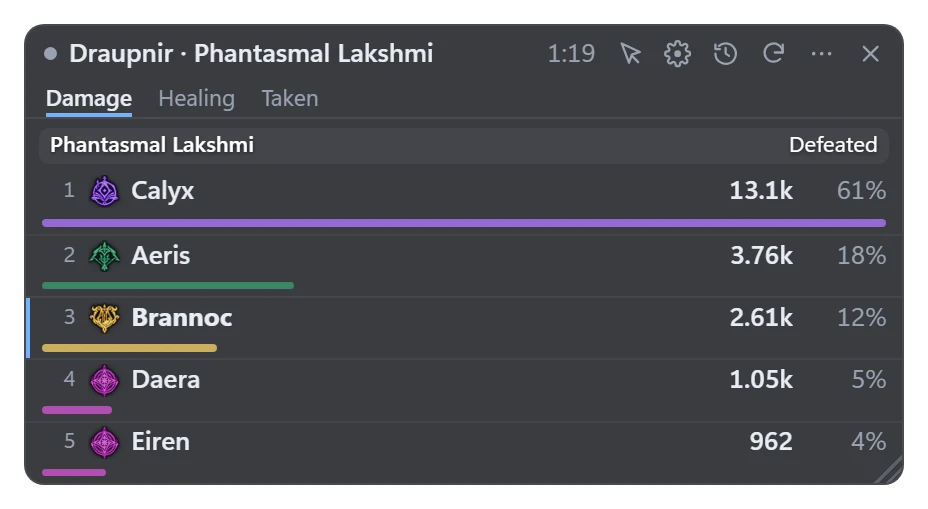
Boss fights
- The boss bar: its HP, the time left to kill it, its stagger bar and its frenzy countdown, from the game’s own time.
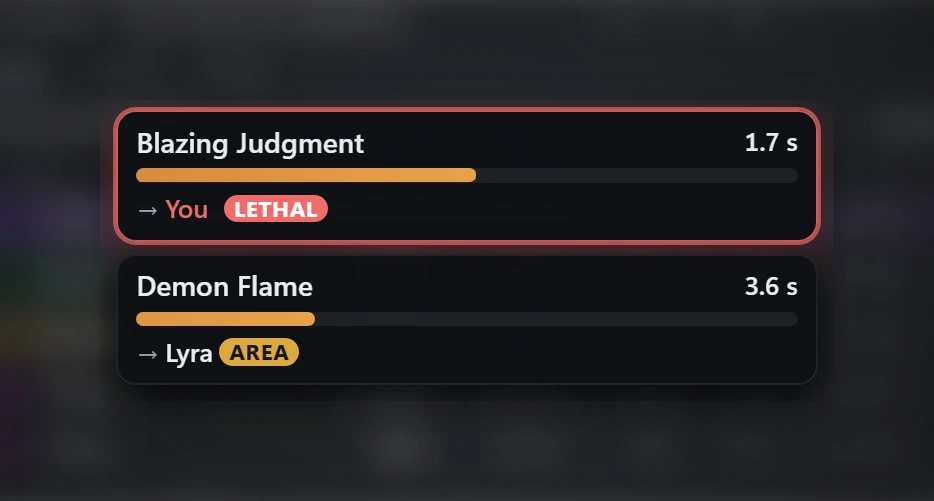
- Combat Assist (Settings › Combat Assist, or Ctrl+Shift+B): a boss’s skill from the moment it starts casting, who it’s aimed at, LETHAL when it could kill you and AREA when it hits everyone around its target. Its moves with no cast show as they happen.
- A sound when a cast is aimed at you or could kill you, if you turn it on.
Events and world bosses
The Event Tracker (Ctrl+Shift+E, or the tray icon) counts down the timed events on your server’s clock and reminds you over the game.
- Reminders: click an event, then Remind me: the next one only, once a day, once a week or every time.
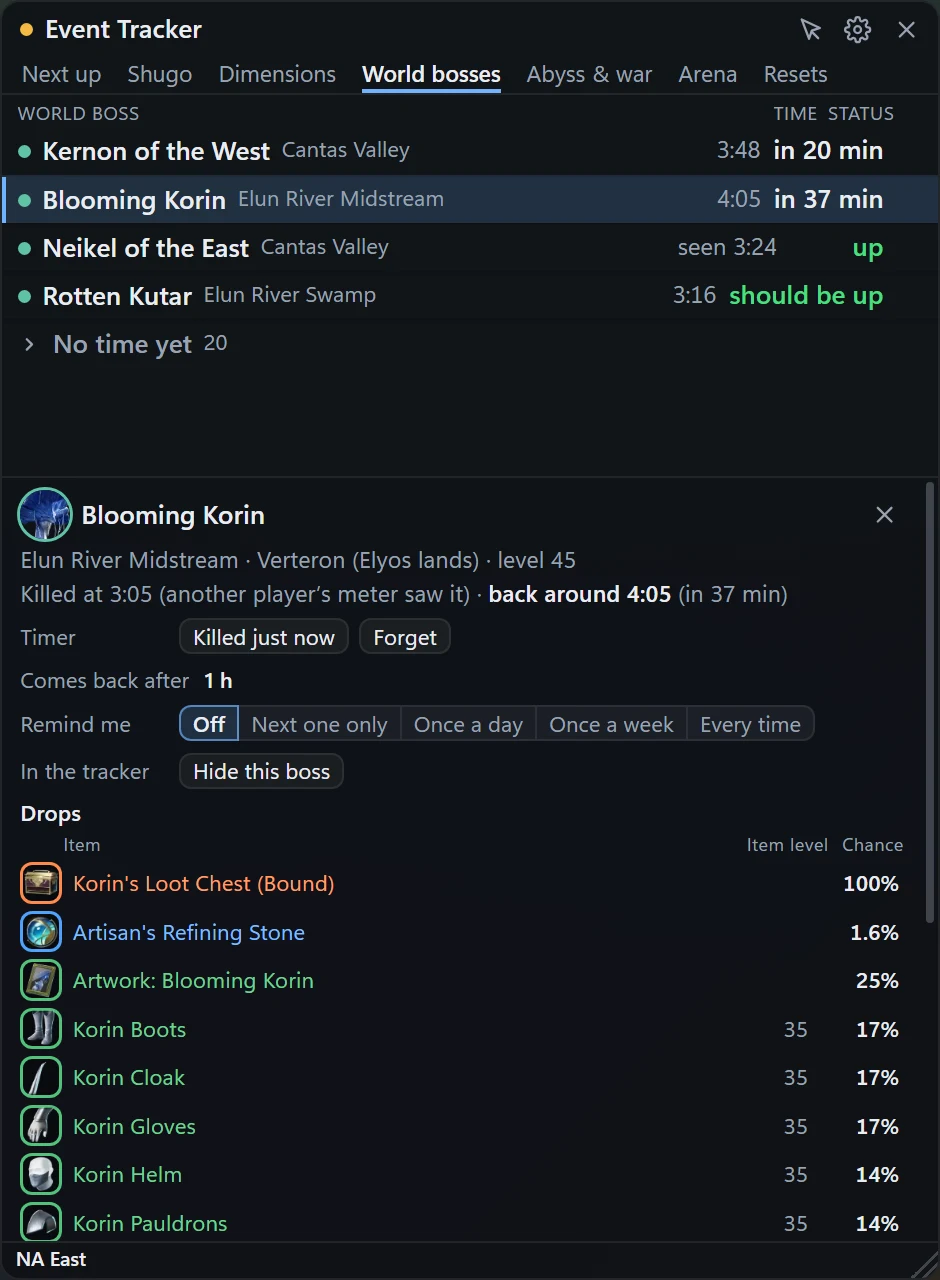
- World bosses: open the game’s map (M) in your land and the meter gets every boss’s timer from it. A boss the meter sees die starts its own timer. The ones with no time yet wait under one row, “No time yet”.
- Shared times: what other DaevaMeter players’ meters see on your server reaches yours too (“another player’s meter saw it”). Settings › Event Tracker › Share world boss times turns it off.
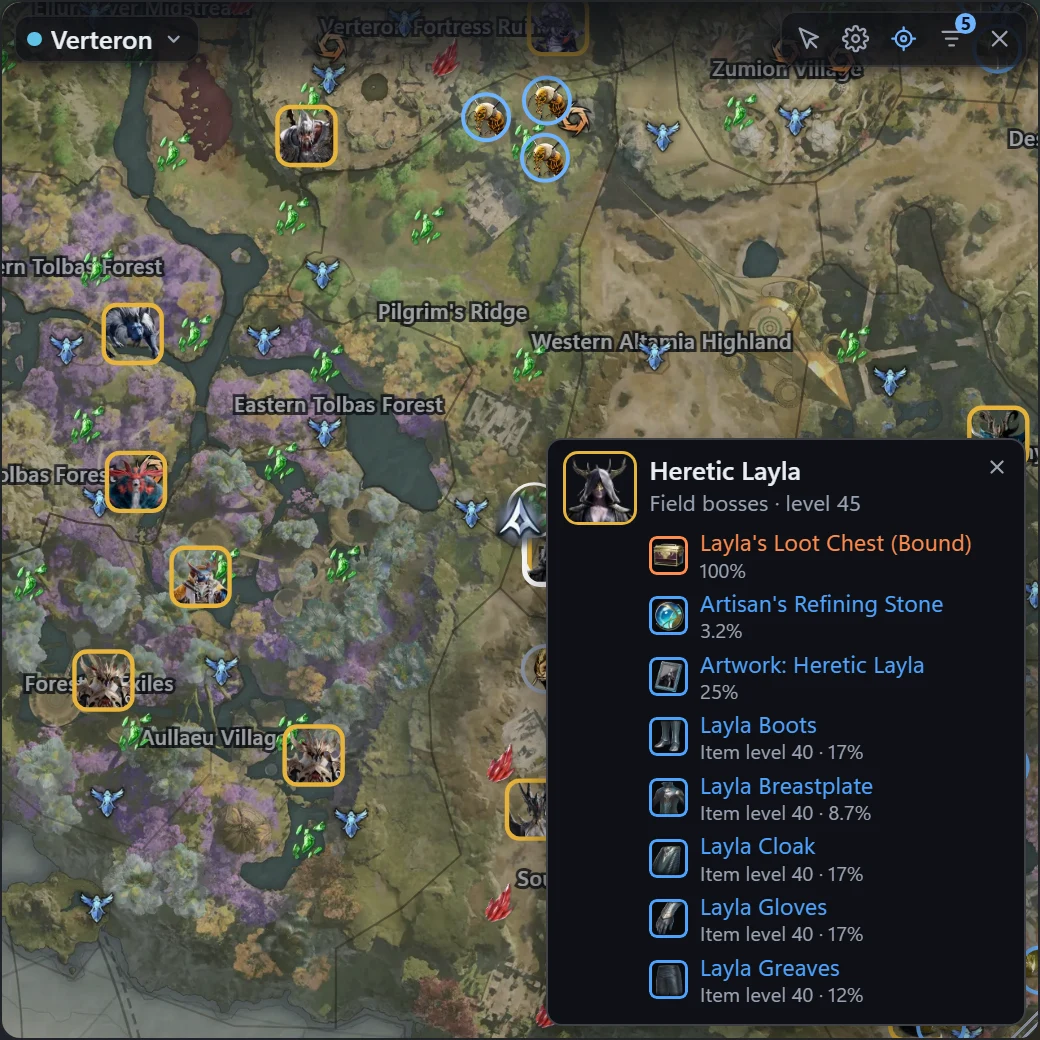
- Drops: a boss’s details list what it drops, with each item’s level and chance.
The world bosses’ times by server are also on this site: event timers.
The interactive map
A map of the zone you’re in, over the game, from the game’s own world map. Show or hide it with Ctrl+Shift+M, the tray icon or the meter’s ⋯ menu › Interactive map.
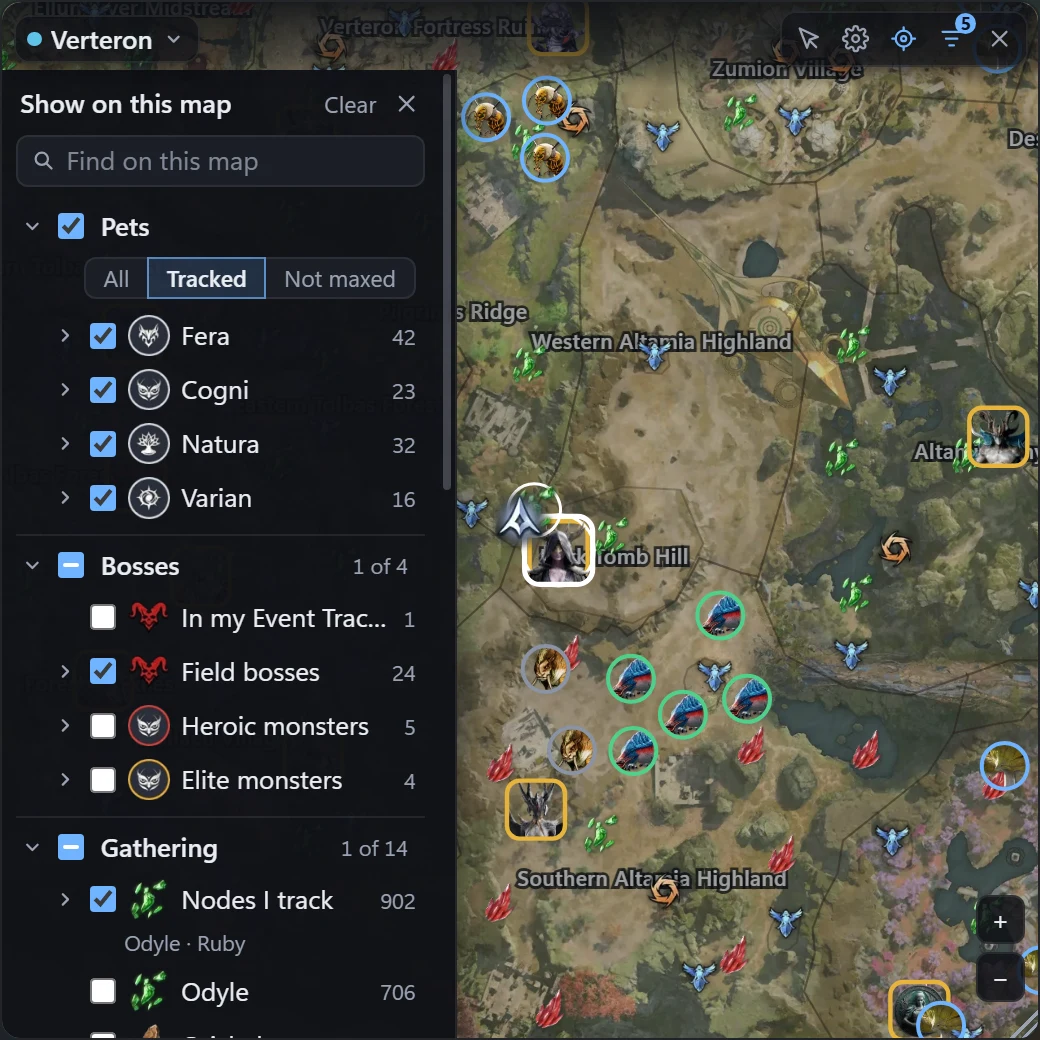
- Pick what to show with the list button at its top: nothing shows until you pick it. The list only has what this zone has, in groups: Pets, Bosses, Gathering (the nodes you track first), Travel, Places, Monsters, Services, Quests, Collectibles. A group’s tick takes all of it.
- Only some of a kind: the arrow at the left of a row lists its own ones (each boss, each pet, each merchant) to tick only those. Pets’ kinds are Fera, Cogni, Natura and Varian, and over them one choice: All, Tracked or Not maxed.
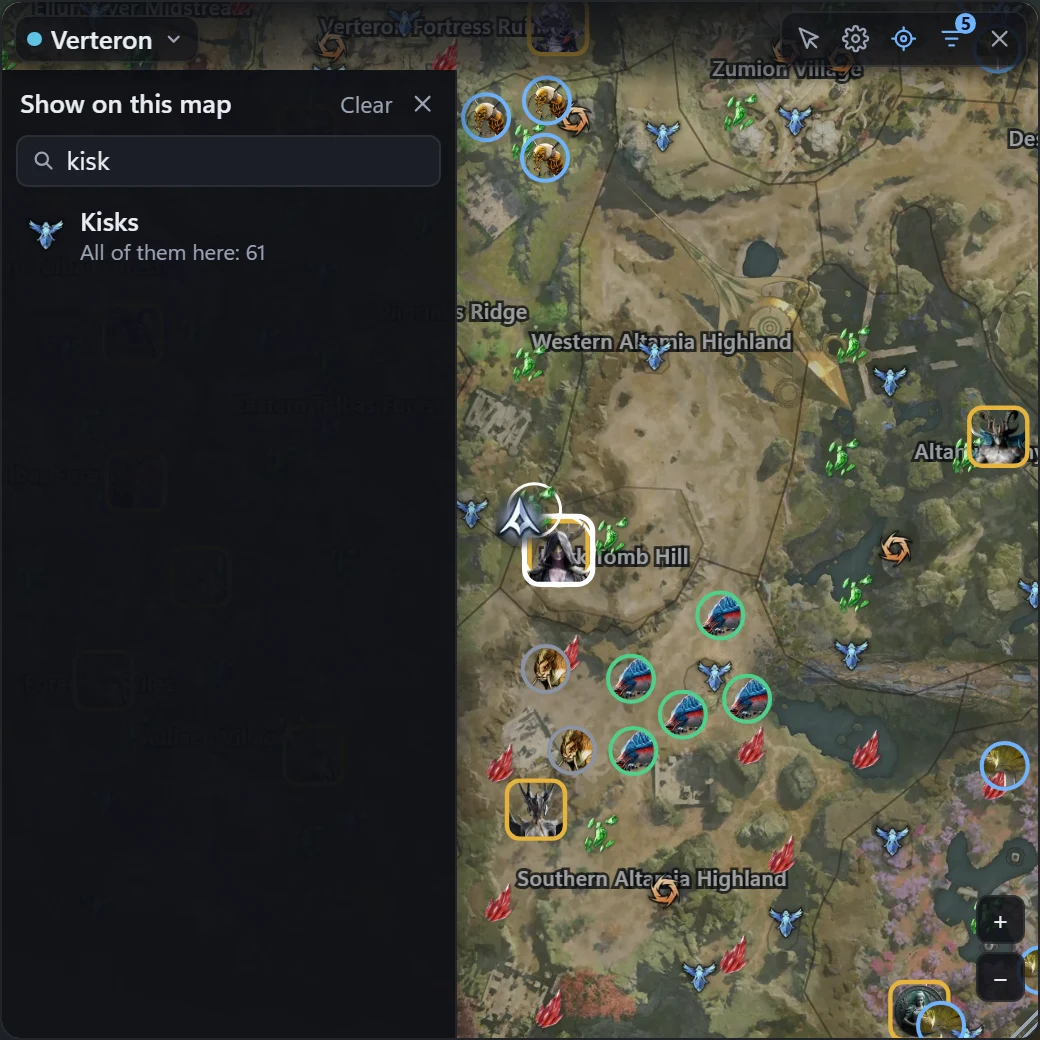
- Find something by name: type a boss, a monster, a merchant or a kind (“kisk”) in the list’s search.
- Hover a marker for its card: a field boss’s picture and best drops, a pet’s progress. Click it to keep the card open, with the drops’ names.
- Move about: the mouse wheel zooms, dragging moves it and pauses following you. Follow me or the target button follows you again.
- Following you as you walk: the game says where you are only now and then (a teleport, a skill on yourself), so the map follows you as you walk with the minimap markers on your minimap: Place on minimap in Settings › Interactive map, Pet Tracker or Node/Cube Tracking (one frame for all three).
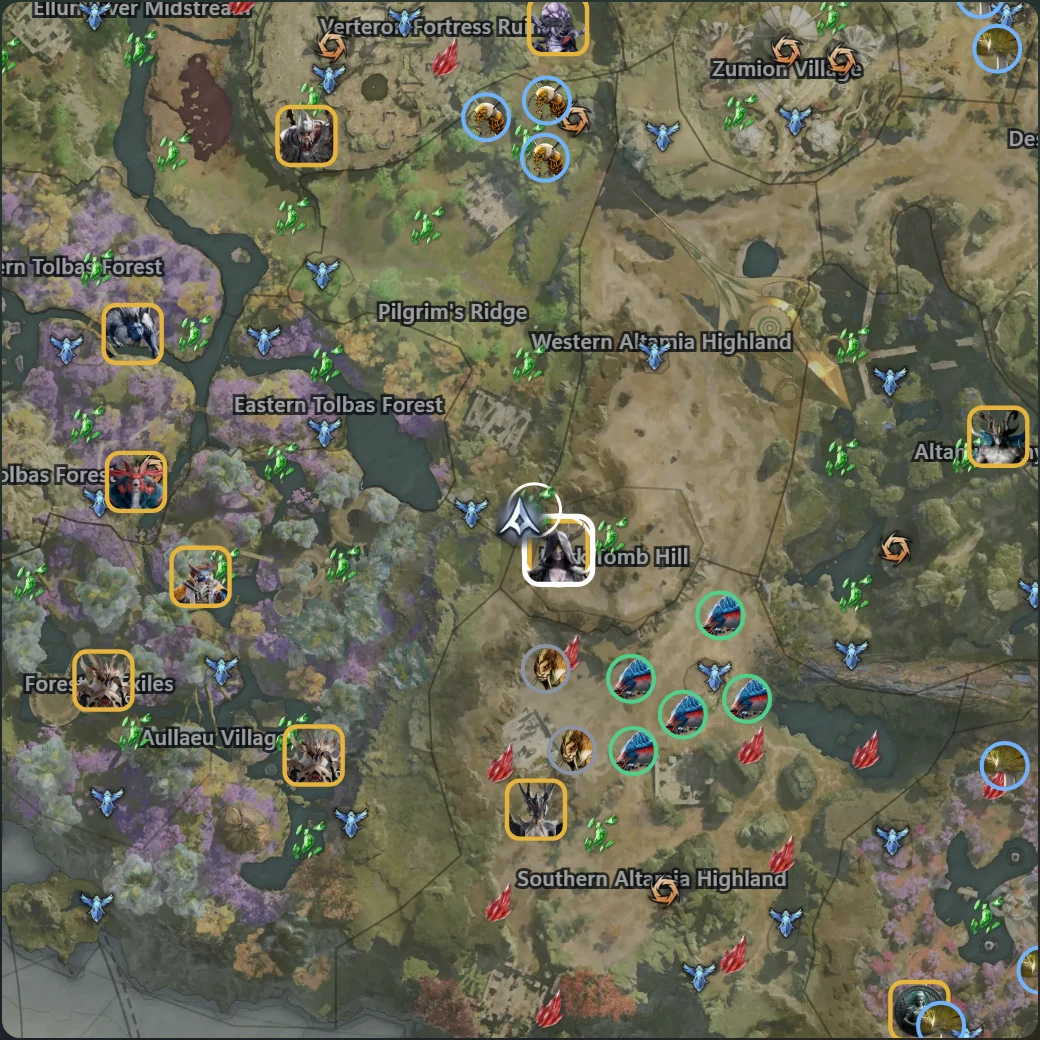
It has no title bar: its controls show while the mouse is over it, and its top moves it. Its list slides away a moment after the mouse leaves the map and comes back as you left it (not while you type in it). It goes away in a dungeon, at the character select and while the game is minimized, and comes back by itself. Its size and opacity: Edit HUD layout › Interactive map; Follow me, its frame and click-through: Settings › Interactive map.
Pets
- Pick your pets in Settings › Pet Tracker, as many as you like: tick a pet to track it. Each one’s level and the souls to its next level show over the game, the ones not maxed first (Edit HUD layout › Pet tracker › Max rows: how many rows).
- Find them in the list: by the pet’s name or a monster’s. Show all of them, the ones you track or the ones not maxed, and the kinds you pick: Fera, Cogni, Natura, Varian. All and None tick what the list shows.
- Where to farm them: the spots where their monsters spawn, on your minimap markers and on the interactive map (its Pets group: the same choices, kind by kind or pet by pet). Show pets on the map in Settings › Pet Tracker opens it with them.
- Killed pet: the souls you just got for a pet you don’t track.
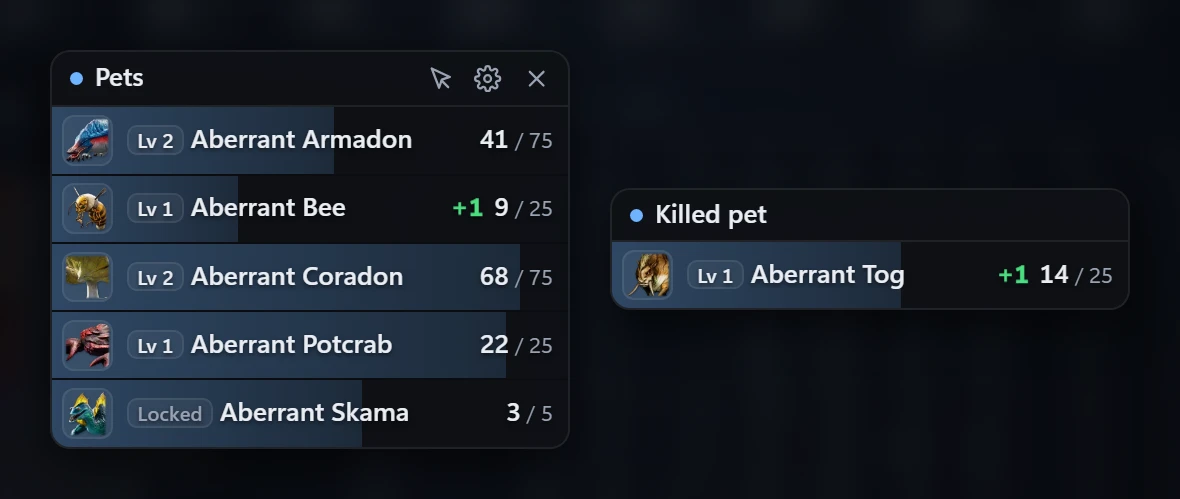
Every pet’s monsters and where they spawn, on this site: the interactive map (pick Pets, or find one by its name).
Your characters
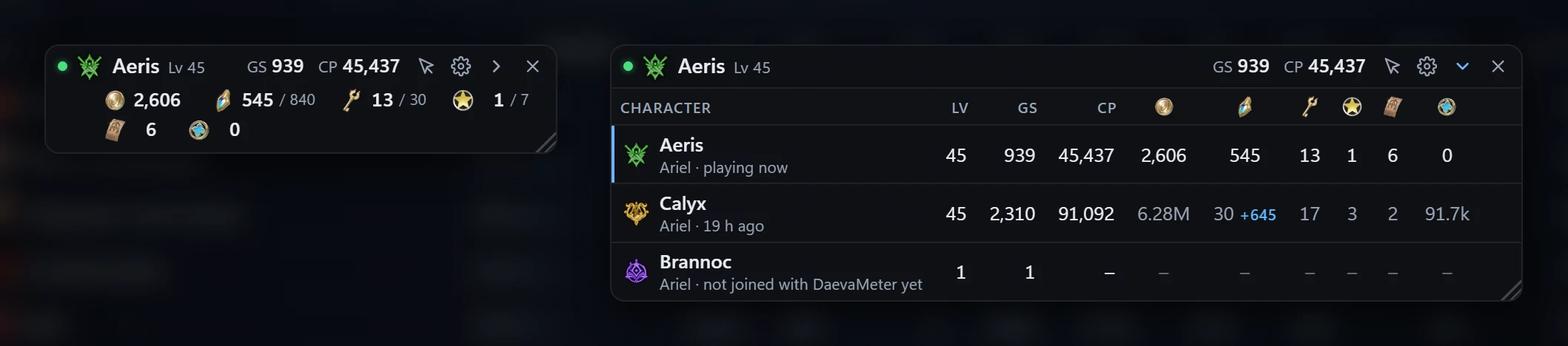
A small piece over the game with the character you play, from what the game sends you. Turn it on in Settings › Characters (or the meter’s ⋯ menu, or the tray icon); put it where you want it in Edit HUD layout.
- The character you play: class, level, Gear Score and Combat Power.
- Your currencies: the ones you choose in Settings › Characters, as many as you like: Kina, Abyss Points, Oath Coin, Odyle Energy, Shugo Festival Keys, Dimensional Invasion Keys…
- Your other characters: its arrow opens them, each saying when its numbers are from. A “–” fills once you join that character with DaevaMeter running.
- In a fight it stays up; tick Hide in combat in Settings › Characters to hide it while you fight.
- Its look: Edit HUD layout › Character panel: with its window or Text only, and its Title off for only the currencies (its buttons show at its bottom right when you point at it, with its list closed).
- On your PC only: nothing of it is sent anywhere.
Nodes and cubes
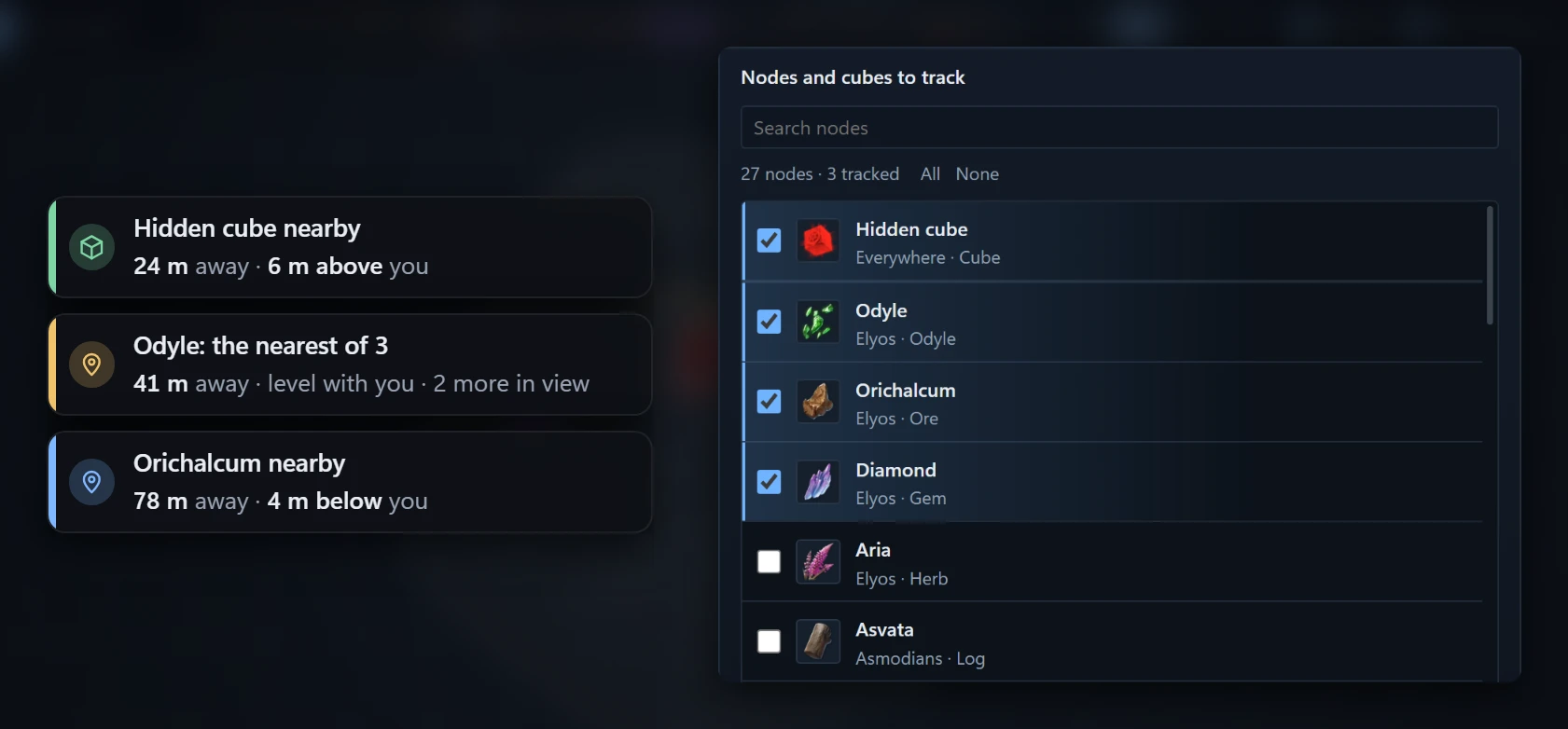
- Gathering nodes (Settings › Node/Cube Tracking), as many as you like: a notice when one is near, how far, and how far above or below you. Node notices in Edit HUD layout gives the notices a place of their own.
- Hidden cubes: a notice when one is in view.
- Minimap markers: Place on minimap (Settings › Node/Cube Tracking) opens Edit HUD layout with them picked: put their frame on your minimap. Each node shows its own icon there. They line up by themselves as you move, and are off in a dungeon, at the character select and while the game is minimized.
- On the interactive map: Gathering › Nodes I track, and Collectibles › Hidden cubes, the ones near you pulsing.
Records
With Records on (Settings › DPS Meter › Records), your group’s Expedition, Transcendence and Raid boss kills come to this site: the fastest clears, each class’s DPS and the builds players use. Everyone is shown by their class; with Show names on, you by your name. A fight saved on your PC can also be uploaded by hand.
Hotkeys
| Keys | What they do |
|---|---|
| Ctrl+Shift+D | Show or hide the meter |
| Ctrl+Shift+R | A new fight |
| Ctrl+Shift+L | Click-through on or off |
| Ctrl+Shift+K | Your own breakdown |
| Ctrl+Shift+E | The Event Tracker |
| Ctrl+Shift+B | Combat Assist |
| Ctrl+Shift+M | The interactive map |
| Ctrl+Shift+O | Settings |
| Ctrl+Shift+P | Record what the meter sees, to report a bug |
Change them in Settings › Hotkeys. Something not working? Help, or ask on the Discord.